

Blog
Security Camera Storage: How Much Hard Drive Space Do You Need?
Jun
It’s the question every customer asks before they buy: how much hard drive space do I actually need? Most camera companies dodge it with phrases like “up to 30 days of storage” without telling you 30 days of what — what resolution, what framerate, how many cameras, recording all day or only on motion. The honest answer is that storage scales linearly with bitrate and time, and once you know the formula you can size an NVR for any setup in about thirty seconds.
This guide walks through the math, gives you real numbers for the camera configurations we see most often, and shows what to look for when you’re picking the hard drive inside your NVR (or building a RAID array if you’re past the single-drive stage).
The formula behind every storage calculator
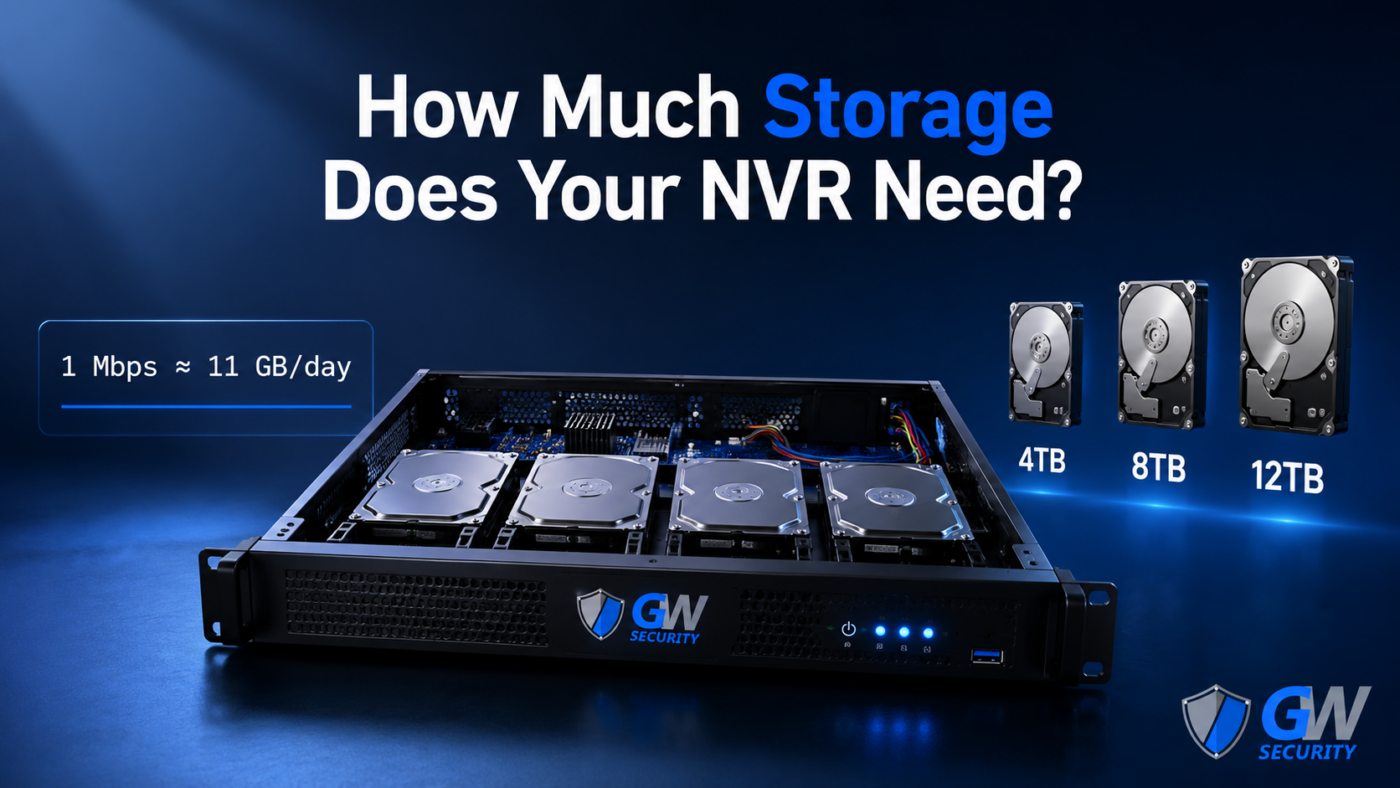
Every camera produces a video stream at some bitrate, measured in megabits per second (Mbps). Multiply that by time, multiply by the number of cameras, and you have your storage requirement. The unit conversion is simple but easy to mess up, so here it is once:
total storage (GB) = storage per camera × number of cameras × number of days
The 10.8 comes from the math: 1 Mbps × 86,400 seconds in a day, divided by 8 to convert bits to bytes, divided by 1,024 to convert MB to GB. Close enough to 10.8 to use as a mental shortcut.
The four levers that change your storage requirement
Bitrate isn’t a fixed number — it’s the output of four settings inside your camera. Adjust any of them and your storage needs change dramatically.
1. Resolution
Higher pixel counts mean more data per frame. Doubling the resolution roughly doubles the storage at the same image quality. Typical default H.265 bitrates by resolution:
| Resolution | Marketing name | Default H.265 bitrate | Storage per camera per day (continuous) |
|---|---|---|---|
| 1080p (2MP) | “Full HD” | ~2 Mbps | ~22 GB |
| 4MP (2K) | “2K Super HD” | ~4 Mbps | ~43 GB |
| 5MP | “5MP” | ~5 Mbps | ~54 GB |
| 8MP (4K) | “4K Ultra HD” | ~8 Mbps | ~86 GB |
| 12MP | “4K+” | ~12 Mbps | ~130 GB |
2. Codec — H.264 vs H.265 vs H.265+
The codec is the math that compresses raw frames into a stream. Each generation roughly cuts the bitrate in half for the same image quality:
- H.264 — older but universally supported. Storage estimates: double the numbers above.
- H.265 — what most modern security cameras default to. The numbers in the table above assume H.265.
- H.265+ (smart codec) — H.265 with motion-aware compression. Static parts of the frame get compressed harder. In low-motion scenes (a quiet driveway at 3am), bitrate can drop to a quarter of H.265’s. Storage savings are real but vary scene-to-scene, so don’t size your drive assuming you’ll get the full discount.
3. Framerate (FPS)
Most cameras default to 15 or 30 FPS. Cutting from 30 to 15 doesn’t quite halve storage (compression is smart about temporal redundancy), but it shaves 30–40%. For most residential and small-business use, 15 FPS is perfectly adequate — you can still see what happened, just slightly less smoothly. License-plate capture and high-detail forensic angles are the exceptions where 30 FPS earns its keep.
4. Recording mode — continuous vs motion-only vs scheduled
This is the biggest lever of all:
- Continuous — record 24/7. Uses the full daily numbers in the table above.
- Motion-only — record only when something moves. Typical real-world recording time: 10–30% of the day depending on the scene. A back-alley camera might hit 5%; a busy retail entrance might hit 40%.
- Scheduled — continuous during business hours, motion-only overnight. Common for commercial setups.
Motion-only is the most common choice for a reason: it shrinks storage by 70–90% with minimal downside, as long as your motion detection is well-tuned and you’re not getting flooded with false triggers from blowing trees or passing headlights.
Real-world sizing tables
Here’s what storage looks like for the camera setups we see most often. All numbers assume H.265, 15 FPS, default bitrates.
Continuous recording (24/7)
| Setup | Daily storage | 30 days | 60 days | 90 days |
|---|---|---|---|---|
| 4 × 4MP cameras | ~172 GB | ~5.2 TB | ~10.3 TB | ~15.5 TB |
| 4 × 8MP (4K) cameras | ~344 GB | ~10.3 TB | ~20.6 TB | ~30.9 TB |
| 8 × 4MP cameras | ~344 GB | ~10.3 TB | ~20.6 TB | ~30.9 TB |
| 8 × 8MP cameras | ~688 GB | ~20.6 TB | ~41.3 TB | ~61.9 TB |
| 16 × 4MP cameras | ~688 GB | ~20.6 TB | ~41.3 TB | ~61.9 TB |
| 16 × 8MP cameras | ~1.38 TB | ~41.3 TB | ~82.6 TB | ~124 TB |
Motion-only recording (assume ~20% of day active)
| Setup | Daily storage | 30 days | 60 days | 90 days |
|---|---|---|---|---|
| 4 × 4MP cameras | ~34 GB | ~1.0 TB | ~2.1 TB | ~3.1 TB |
| 4 × 8MP cameras | ~69 GB | ~2.1 TB | ~4.1 TB | ~6.2 TB |
| 8 × 4MP cameras | ~69 GB | ~2.1 TB | ~4.1 TB | ~6.2 TB |
| 8 × 8MP cameras | ~138 GB | ~4.1 TB | ~8.3 TB | ~12.4 TB |
| 16 × 4MP cameras | ~138 GB | ~4.1 TB | ~8.3 TB | ~12.4 TB |
| 16 × 8MP cameras | ~275 GB | ~8.3 TB | ~16.5 TB | ~24.8 TB |
How long do you actually need to keep footage?
Storage requirements depend entirely on retention. Most people overestimate how much they need. Industry guidance:
- Residential 14–30 days. Most homeowner disputes (package theft, vandalism, vehicle damage) are reported within a week. Thirty days is generous.
- Small business 30–60 days. Covers slip-and-fall claims, employee disputes, and most retail loss-prevention windows.
- Cannabis dispensary 90 days, sometimes longer (state-dependent). California, Colorado, and most regulated states mandate 90-day retention by law.
- Banks / financial 90+ days. Federal regulation, state law, and insurance carrier requirements all push toward 90 days minimum.
- HOA / multi-family 30–60 days. Long enough to cover most resident complaints and incidents.
Picking the right retention window is the single biggest cost lever in your whole system. Going from 30 to 90 days triples your drive size — and if you’re already on a 16-camera 4K continuous setup, that’s the difference between a $300 drive and a $1,500 RAID array.
Two-drive setups: single volume vs RAID 1 mirror
Most GW NVRs — including the 4, 8, 16, and 32-channel systems we sell — ship with two hot-swappable HDD bays. That gives you two practical configuration choices, and the right one depends on whether you care more about capacity or redundancy.
| Configuration | What it does | When to use it |
|---|---|---|
| Single drive | One HDD installed, second bay empty (or unused). Maximum capacity for one drive: 12 TB. | Smaller setups, motion-only recording, or when the second bay is reserved for future expansion. |
| Two drives, separate volumes | Both bays populated, each presented as its own storage volume. NVR records to drive 1 first, rolls over to drive 2 when full. | Maximum total capacity (up to 2 × 12 TB = 24 TB). No redundancy — one drive failure loses whatever was on it. |
| RAID 1 (mirrored) | Both bays populated, data written to both drives simultaneously. Usable capacity is one drive’s worth (max 12 TB). | When footage absolutely cannot be lost. Survives one drive failure. Cost: half your raw capacity goes to the mirror. |
For most residential and small-business setups, the two-drive separate-volume layout is the right call — you get the full 24 TB of capacity and most footage is overwritten before a drive ever fails. For dispensaries, banks, and anyone with mandatory retention windows, RAID 1 is worth the capacity hit.
RAID 5 and RAID 6 — for the 128-channel enterprise NVR
The two-bay NVRs that make up most of our lineup are limited to RAID 1 mirroring. The GW42-42128NV16-2 is the exception — with 16 bays you can run real parity-based RAID:
| RAID level | Survives | Usable capacity (16 × 16 TB raw = 256 TB) |
|---|---|---|
| RAID 5 | 1 drive failure | ~240 TB (one drive worth of capacity lost to parity) |
| RAID 6 | 2 simultaneous drive failures | ~224 TB (two drives worth of capacity lost to parity) |
| RAID 10 | Up to 1 drive failure per mirrored pair | ~128 TB (50% efficiency, but fast rebuilds) |
For most enterprise deployments running the 128-channel NVR, RAID 6 is the right answer — you get 224 TB of usable space, you can survive two drives failing simultaneously (which actually happens during long rebuilds when a second drive gives up under load), and downtime is minimized. The capacity cost — two drives out of sixteen — is small relative to the protection.
Surveillance-grade vs desktop drives
Not every hard drive is built for security NVRs. Desktop drives are designed for 8 hours/day of light use; surveillance drives are designed for 24/7 sustained writes. Putting a desktop drive in an NVR works for a while, then it dies — usually right when you need the footage.
Look for drives marketed specifically for surveillance: WD Purple, Seagate SkyHawk, and Toshiba S300 are the three big lines. The premium over desktop drives is small (often less than $20 on a 4 TB drive) and the lifespan difference is huge — typical surveillance drive MTBF is 1.5M+ hours rated for 24/7 operation, versus 600K hours for desktop drives rated 8/5.
How GW Security ships its NVRs
Every GW NVR can be ordered with the hard drive preinstalled at the size you need, or with empty bays if you’d rather supply your own surveillance-grade drives. Built-in HDD options at checkout typically include 2 TB, 4 TB, 6 TB, and 8 TB — and most systems support up to 12 TB per bay if you install your own.
- 4-channel and 8-channel NVRs — 1 HDD bay on the compact models, 2 bays on the standard models. Up to 12 TB per bay.
- 16-channel NVRs — 2 hot-swappable HDD bays. Max total capacity 24 TB (2 × 12 TB), or 12 TB usable in a RAID 1 mirror.
- 32-channel NVRs — 2 hot-swappable HDD bays. Same 24 TB max / 12 TB mirrored as the 16-channel models. The bigger channel count is about how many cameras you can connect, not how much storage you can fit.
- 128-channel enterprise NVR (GW42-42128NV16-2) — 16 hot-swappable HDD bays supporting up to 16 TB per bay for a 256 TB ceiling. Dual HDMI + dual VGA outputs with independent display routing. ONVIF Profile S/G/T and RTSP support. Built for large commercial deployments where 32 channels and 24 TB aren’t enough.
Bays are hot-swappable on the 16-channel, 32-channel, and 128-channel models, so you can replace a failing drive (or expand) without taking the system offline.
Not sure which NVR fits your setup?
Tell us the number of cameras, resolution, and how long you want to keep footage. We’ll spec the right NVR and drive configuration — no recurring fees, no monthly cloud bill, the storage is yours.
Browse NVRs by channel count
4, 8, 16, or 32 channels — all with preinstalled surveillance HDDs, all with RAID support on the bigger models.
